
Visual Tour
nextExplorer keeps the essentials—authentication, volumes, previews, and settings—front and center. These screenshots have guided the UX team and can help you introduce the experience to teammates during demos.
Sign in and unlock
- The login screen shows your workspace branding, workspace name, and the “Log In” button. On first launch you either complete the setup wizard to create the first admin account, or pre-seed it via
AUTH_ADMIN_EMAIL/AUTH_ADMIN_PASSWORD; subsequent unlocks rely on that password, with optional OIDC if enabled viaOIDC_ENABLED. - Trusted sessions reappear quickly thanks to the unlock modal, which prompts for the workspace password only when needed.
The dashboard after authentication
- The sidebar lists Favorites (quick access pins) and Volumes (each
/mnt/Labelmount). Metadata badges display online/offline states and volume usage whenSHOW_VOLUME_USAGEis true. - The top toolbar combines navigation controls, breadcrumbs, view mode toggles (grid/list), sort options, search, and the Create menu.
- The workspace area flexes between grid/list/column views and highlights previews for supported media when you hover or double-click.
Browsing volumes and favorites
- Default grid view shows folders with large icons—great for media-heavy directories—and automatically generated thumbnails for images and videos (FFmpeg is used internally when available via
FFMPEG_PATH/FFPROBE_PATH). - Favorites keep important folders within reach using the star in the toolbar or context menu; custom icons help distinguish repeated pins.
- Context menus are available on the main canvas (clipboard actions, new file/folder, info) and on individual items (rename, download, edit, move, delete).
On-the-fly previews and editing
- Double-click or press Enter to open images/videos/PDFs directly inside the app; supported text/code files open in the built-in editor with syntax highlighting and save/cancel actions.
- Markdown, JSON, and text files preview automatically with inline controls for launch vs. editor.
- ONLYOFFICE edits rely on
/api/onlyoffice/*endpoints; setONLYOFFICE_URL,ONLYOFFICE_SECRET, and optionallyONLYOFFICE_LANGto enable in-browser document editing.
Uploads, downloads, and search
- Upload files/folders via the Create → Upload menu, drag-and-drop, or clipboard actions; a floating footer panel shows per-file progress with pause/resume/cancel options.
- Multi-select downloads bundle into a ZIP when you have more than one item or include folders.
- The search icon launches ripgrep-backed search across filenames and contents; if
SEARCH_RIPGREPis disabled, the app falls back to a lighter built-in search for smaller datasets.
Settings, admin, and access controls
- Settings consolidate Files & Thumbnails, Security, Access Control, and Admin Users. Admin-only sections appear once your account has the
adminrole or matching OIDC groups (OIDC_ADMIN_GROUPS). - Access Control rules can mark paths as
ro(read-only) orhidden, with first-match-wins behavior relative to your logical root. - Admin users manage local accounts, reset passwords, and control roles from within Settings → Admin.
Capturing the UI
| Image | Caption |
|---|---|
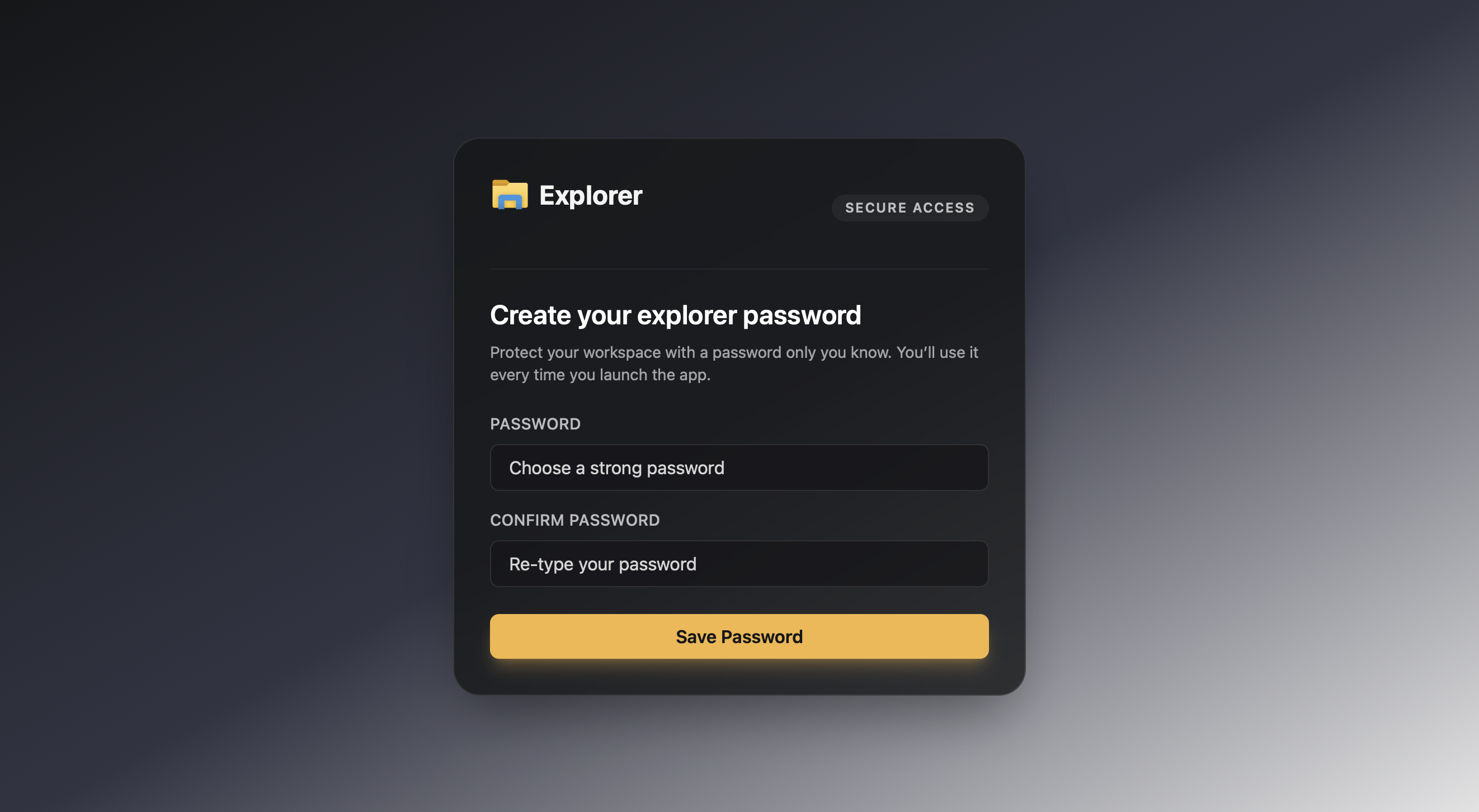 | The first setup screen protects the workspace with a master password. |
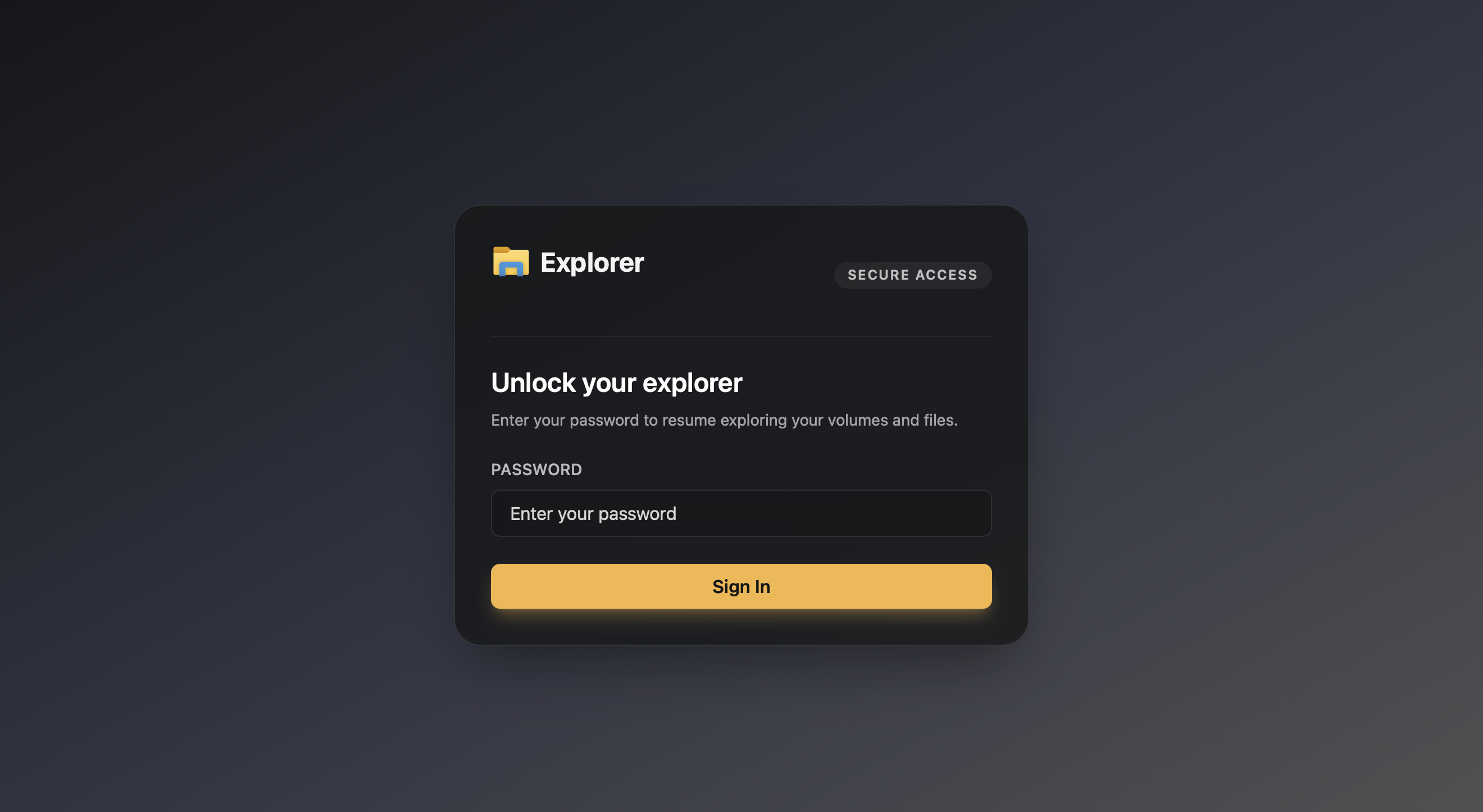 | Unlock trusted sessions when your workspace password is required. |
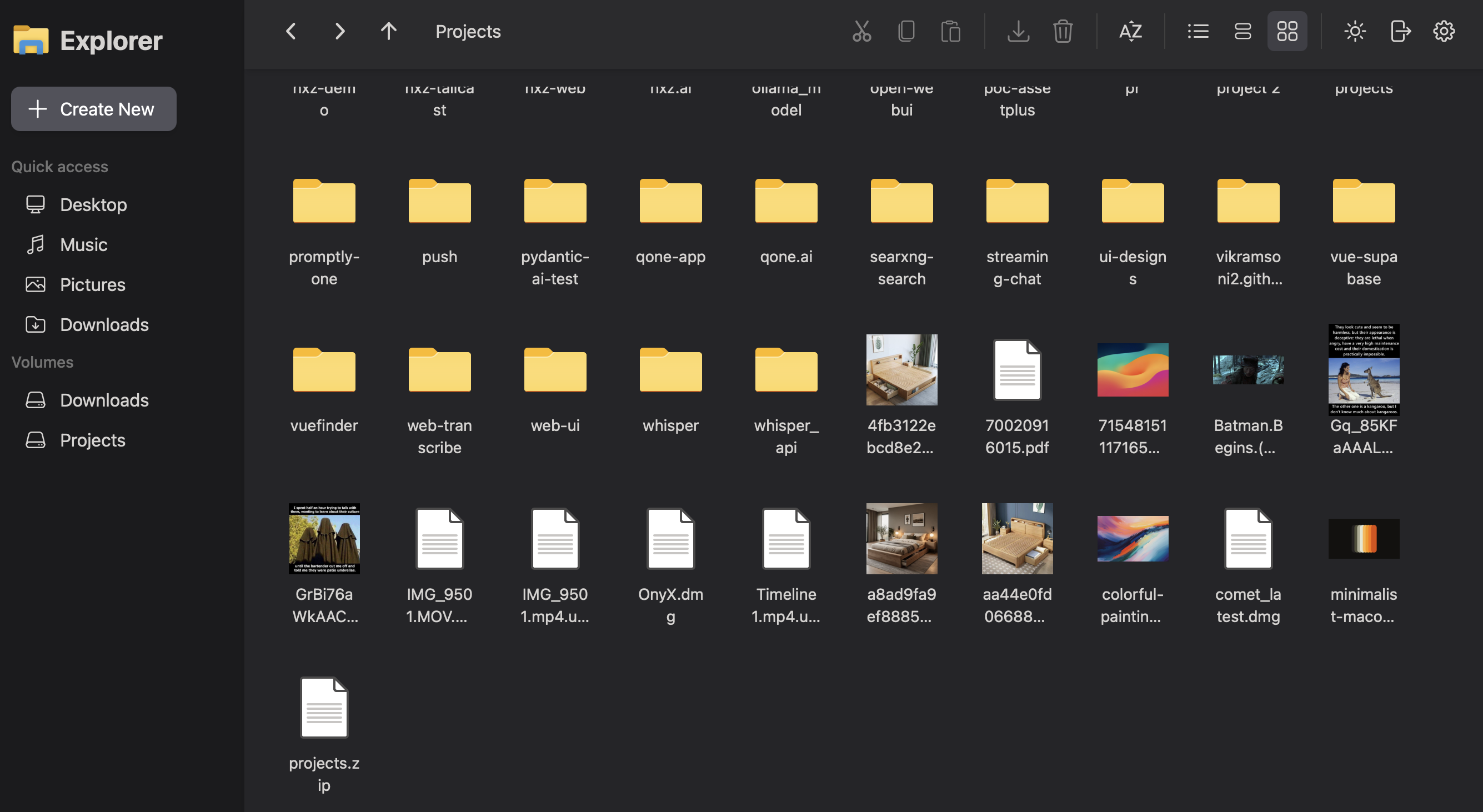 | Grid view with thumbnails and folder labels. |
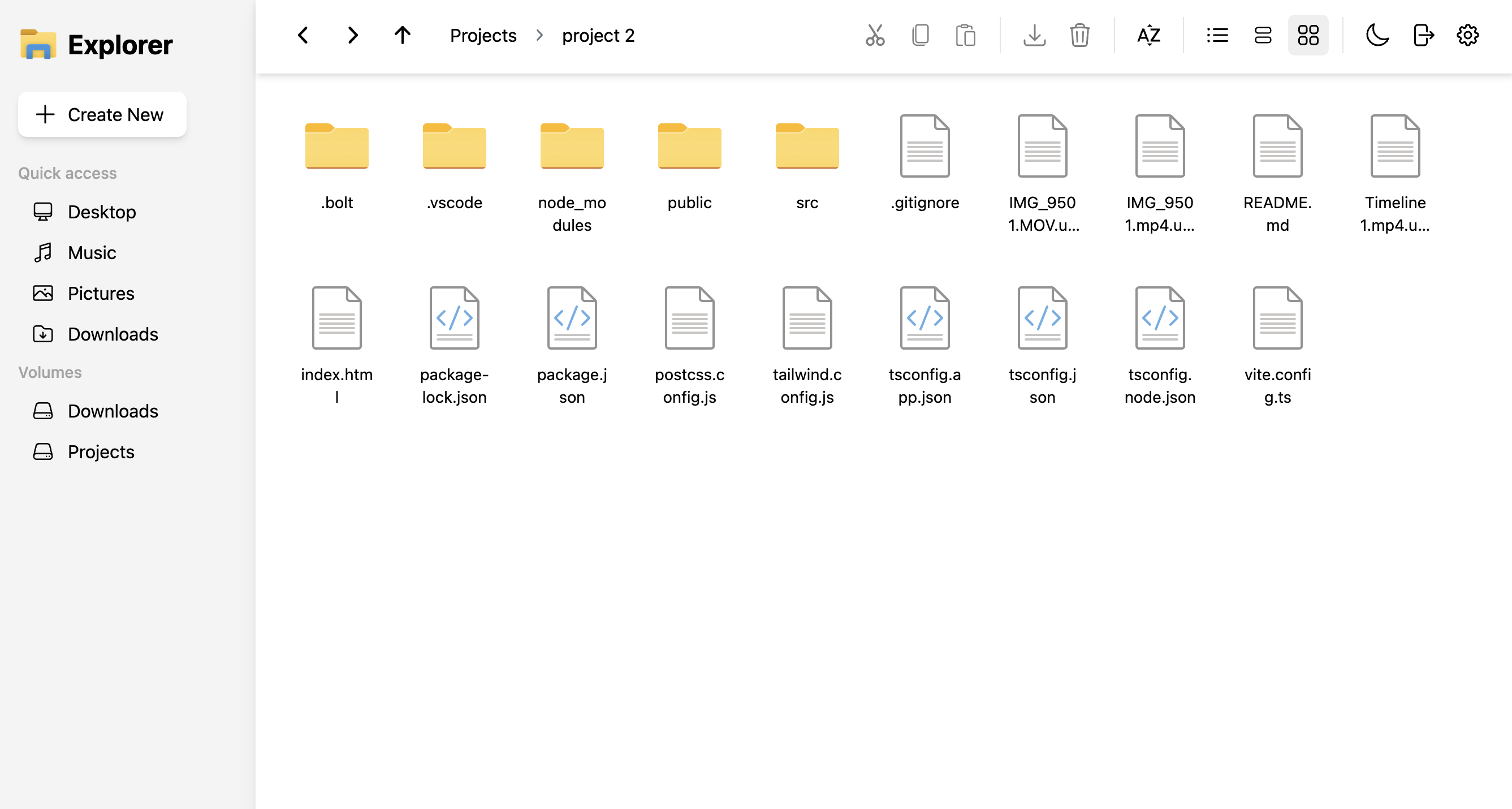 | Light theme for bright, collaborative spaces. |
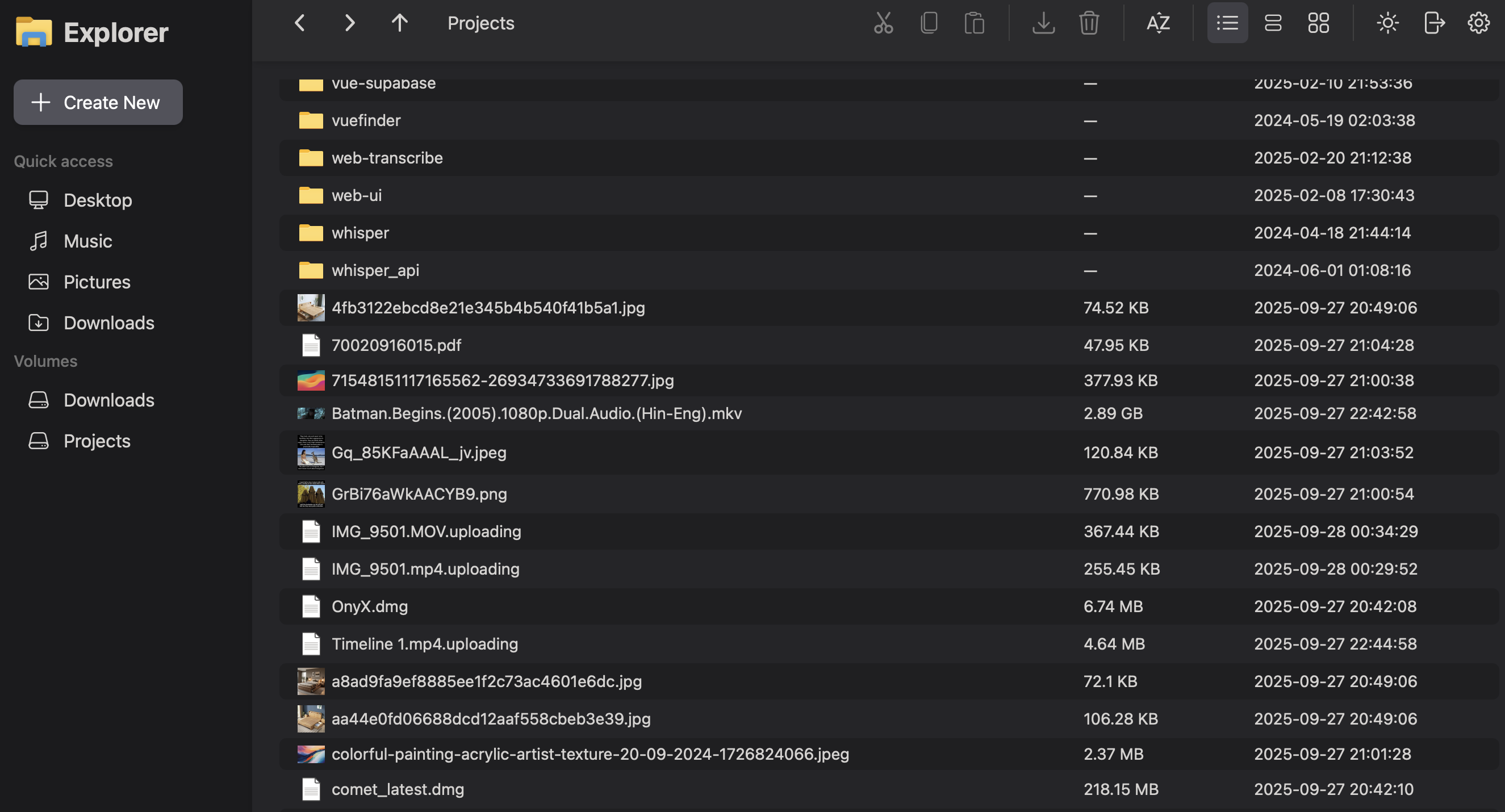 | Detail list view surfaces size, kind, and modification dates. |
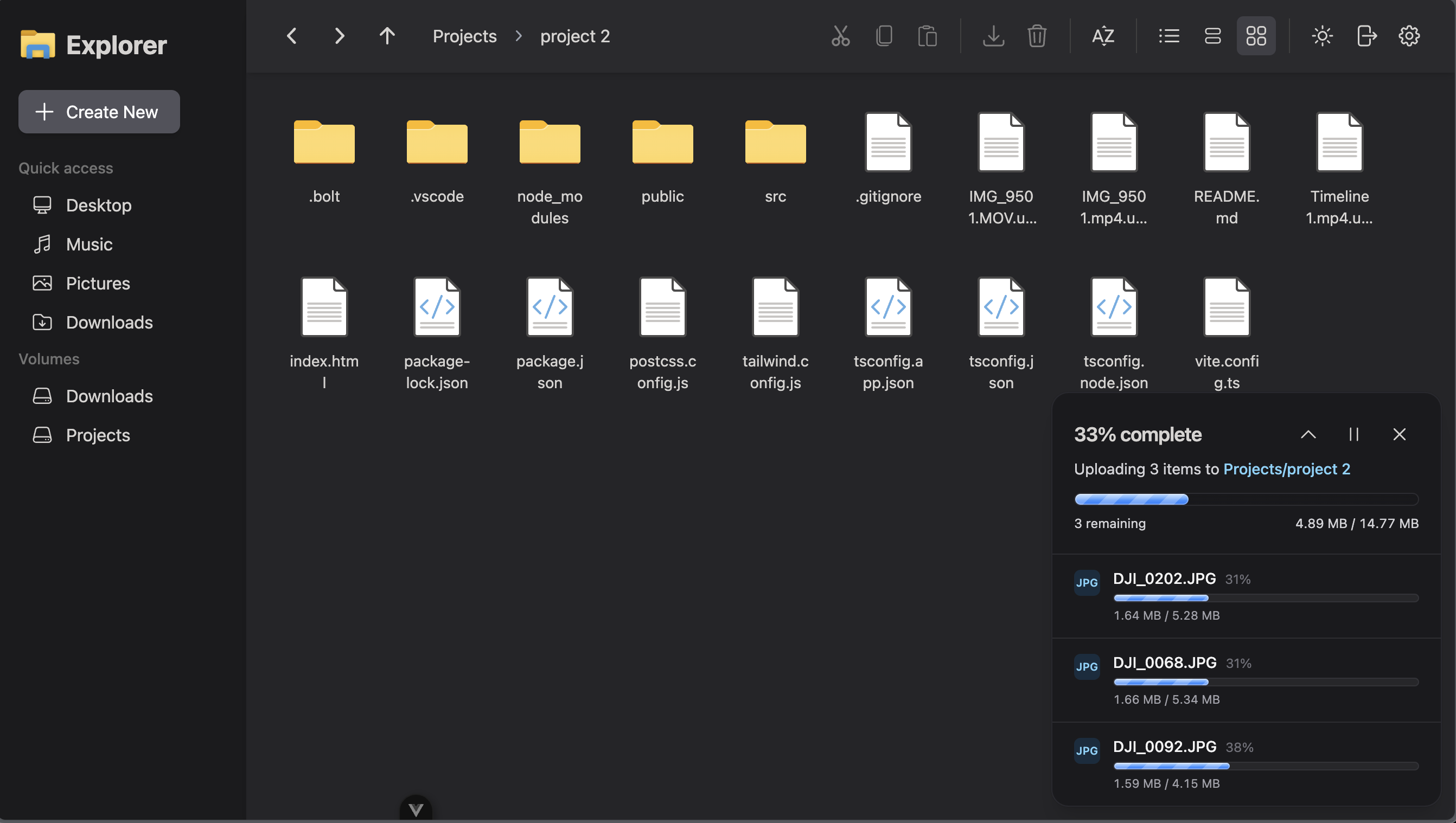 | Drag or button uploads show per-item progress in the footer. |
Use these scenes when introducing nextExplorer to teammates or prepping your own screenshots for branded guides.